Setting up is fastest on a computer. Send yourself this link and follow the steps there, or carry on here.
Connect Makemancer in 2 minutes
Pick the app you use. One sign-in, no API key. New accounts get 100 free credits, shared across every app with your files.
Choose your app
Install the Claude plugin
One install adds the connector and every Makemancer skill, and keeps them updated. Works in Claude.ai, Claude Desktop and Cowork.
- 1
Add the Makemancer marketplace
In Claude, open Customize, then Plugins. Under Personal plugins choose +, then Add marketplace, and paste:
makemancer/makemancer-marketplace - 2
Add the plugin
Find Makemancer and choose Add. This adds the connector and every skill to your Claude account.
- 3
Connect and sign in
Open the plugin's Connectors tab, choose Connect and sign in with your Makemancer account.
Done. Start a new chat and try the prompt below.
Works on every Claude plan, Free included; on Team and Enterprise your admin may need to allow plugins. No Plugins tab? Add the connector and the skills by hand below. Official guide
Other ways to connect
No Plugins tab? Add the connector and skills by hand
- 1
Open connector settings
Open Claude's connector settings. The button opens the Add custom connector dialog. In Claude Desktop, go to Customize, then Connectors, then Add.
Open connector settings - 2
Paste the server URL
Name it Makemancer, paste this server URL and choose Continue.
https://makemancer.com/api/mcp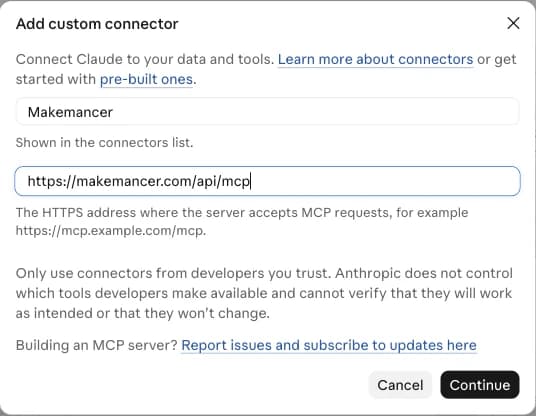
- 3
Connect and sign in
Choose Connect and sign in with your Makemancer account. In a chat, open the tools menu and check that Makemancer is switched on.
- 4
Add the skills
Download the skills ZIP, then in Claude open Customize, then Skills, choose +, then Upload a skill, and pick the ZIP. Your assistant then follows the same workflows as the plugin.
Download makemancer-skill.zip
Add Makemancer to ChatGPT
Add Makemancer as a custom MCP server from the Plugins page, then upload the Makemancer skill so ChatGPT follows the same workflows. ChatGPT uses its own server URL, shown below.
- 1
Open Plugins in ChatGPT
Open Plugins in ChatGPT, choose Add, then Add custom MCP server.
Open ChatGPT Plugins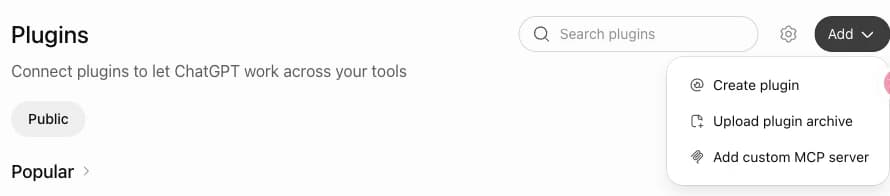
- 2
Paste the ChatGPT server URL
Name it Makemancer and paste the ChatGPT server URL. Keep Authentication on OAuth, tick “I understand and want to continue” and choose Create as a plugin.
https://makemancer.com/api/mcp/chatgpt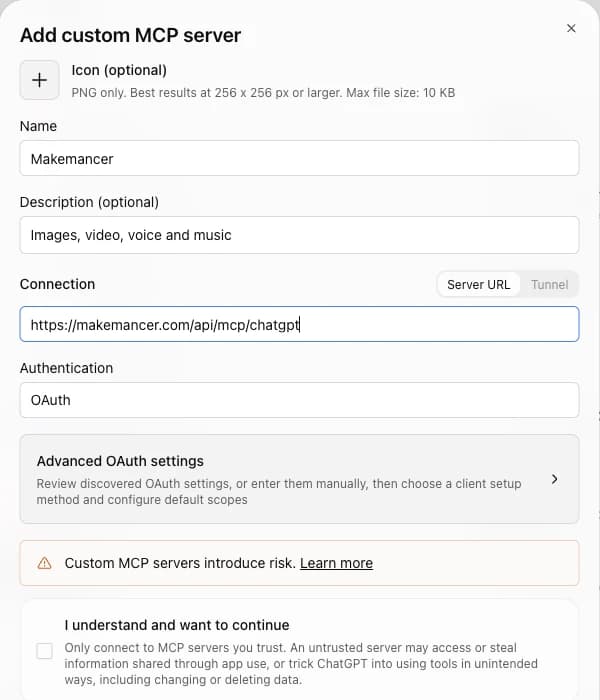
- 3
Sign in and pick it
Sign in with your Makemancer account. In a new chat, type @ and pick Makemancer.
- 4
Upload the Makemancer skill
Download the skill ZIP, then in ChatGPT go to Skills, choose Create, then Upload from your computer, and pick the ZIP. ChatGPT then follows Makemancer's workflows, such as making a keyframe image before it generates a video, and you can call it with @Makemancer. If you see Skills in ChatGPT, you can add it; some plans may not have it yet.
Download makemancer-skill.zip Done. Start a new chat, type @Makemancer and try the prompt below.
OpenAI lists custom MCP servers for Business and Enterprise/Edu workspaces on the web, where admins and owners create them. Availability on personal plans varies; if your Plugins page shows Add custom MCP server, it works. Official guide
Install the Claude Code plugin
The connector and every skill in one plugin. Works in the terminal, IDEs and the desktop Code tab.
- 1
Add the marketplace
Run this inside Claude Code:
/plugin marketplace add makemancer/makemancer-marketplace - 2
Install the plugin
Then install it:
/plugin install makemancer@makemancer-marketplace - 3
Sign in
Run /mcp, choose makemancer and sign in when the browser opens.
/mcp Done. Try the prompt below.
Works with any Claude Code login. Added the server by hand before? Remove it with claude mcp remove makemancer so it does not show twice. Official guide
Other ways to connect
Add the MCP server only
- 1
Add the server
No skills, just the tools. Run this in your terminal:
claude mcp add --transport http makemancer https://makemancer.com/api/mcp - 2
Sign in
Start Claude Code, run /mcp, choose makemancer and sign in.
Install the Codex plugin
The connector and every Makemancer skill in one plugin, so Codex follows the same workflows, such as a keyframe image before each video. Works in the Codex app and CLI.
- 1
Add the marketplace
Run this in your terminal:
codex plugin marketplace add makemancer/makemancer-marketplace - 2
Install the plugin
This installs the plugin with the connector and every skill:
codex plugin add makemancer@makemancer-marketplace - 3
Start a task and sign in
Open a new Codex task: the skills load in new tasks. Complete the browser sign-in when Makemancer asks.
Done. Start a task and try the prompt below.
Works with any Codex login. The IDE extension doesn't load plugins; there, add the MCP server and the skill by hand below. Official guide
Other ways to connect
Add the MCP server and the skill by hand
- 1
Add the server
Adds the tools:
codex mcp add makemancer --url https://makemancer.com/api/mcp - 2
Sign in
Codex opens the browser to sign in and remembers it:
codex mcp login makemancer - 3
Add the skill
Download the skill ZIP and unzip it into your Codex skills folder, then start a new task. Codex then follows Makemancer's workflows; type $ to pick the skill by name.
Download makemancer-skill.zipmkdir -p ~/.agents/skills && unzip -o ~/Downloads/makemancer-skill.zip -d ~/.agents/skills
Add Makemancer to Grok Bot
Add the Makemancer MCP server from Grok Bot's plugin settings, or ask Grok Bot to add it for you.
- 1
Open Settings, then Plugins
Choose to add an MCP server. Or ask Grok Bot: “Add the Makemancer MCP server.”
- 2
Paste the server URL
Use this URL when Grok Bot asks for one:
https://makemancer.com/api/mcp - 3
Sign in
Complete the OAuth sign-in when prompted.
Done. Ask Grok Bot to use Makemancer.
Grok Bot gets the Makemancer tools; the skills are available in Claude, Claude Code and Codex.
Add Makemancer to Hermes Agent
Add the server in one click or with one command, then sign in once.
- 1
Add the server
The button opens Hermes Agent's MCP install prompt with the server filled in. Or run this in your terminal:
hermes mcp add makemancer --url https://makemancer.com/api/mcp --auth oauth - 2
Sign in and enable the tools
Hermes opens the Makemancer sign-in in your browser. Allow it, then answer Y when Hermes asks to enable the tools. If the sign-in did not finish, run:
hermes mcp login makemancer - 3
Start a new session
Start a new Hermes session so it loads the tools, then ask it to use Makemancer.
Done. Start a new Hermes session and ask it to use Makemancer.
Needs a Hermes Agent version with MCP OAuth support.
Add Makemancer to OpenClaw
Register the server, sign in, check the tools, then add the skills from ClawHub.
- 1
Add the server
Run this in your terminal:
openclaw mcp add makemancer --url https://makemancer.com/api/mcp --transport streamable-http --auth oauth - 2
Sign in
Opens the browser sign-in:
openclaw mcp login makemancer - 3
Check it
Confirms OpenClaw can reach every tool:
openclaw mcp doctor makemancer --probe - 4
Add the skills
Installs the Makemancer workflows from ClawHub. Restart the gateway afterwards:
openclaw plugins install clawhub:@makemancer/plugin --accept-capabilities && openclaw plugins enable makemancer Done. Ask OpenClaw to use Makemancer.
Uses OpenClaw's native MCP registry; the skills come from the Makemancer package on ClawHub.
Add Makemancer to another MCP app
Makemancer is a standard remote MCP server with OAuth, so any app that supports remote servers can use it.
- 1
- 2
Or paste the server URL
Use it wherever your app asks for a remote MCP server:
https://makemancer.com/api/mcp - 3
Sign in
Your app opens the Makemancer sign-in the first time it connects.
Done. Ask your assistant to use Makemancer.
Needs an app with remote MCP and OAuth support.
First test
Check it works with one image
Use Makemancer to make a square photo of a speckled stoneware mug of coffee on linen, soft morning light. Tell me the cost first.Works in Claude, Claude Code, ChatGPT, Codex, Grok Bot, Hermes Agent and OpenClaw.

Start from a skill
The plugin adds skills: ready-made workflows your assistant follows. Start one with a prompt.

Generate an image
12 cr · Nano Banana 2Photos, posters and edits, routed to the right image model.

Product photoshoot
12 cr a sceneA matching set of product shots that keep the same product and brand.

Generate a video
from 15 crText to video or image to video, from quick drafts to cinematic shots.

Generate music
16 cr · two songsJingles, beds and full songs, instrumental or with vocals.

Generate sound effects
from 2 crFoley, ambience, UI sounds and transitions.

Generate a voiceover
from 3 crNarration and dialogue in hundreds of voices and languages.
If something is off
The sign-in window does not open, or closes with an error
Allow pop-ups for your AI app, then choose Connect again. If you signed in with a different email before, sign out of Makemancer in your browser and retry.
The tools do not show up in the chat
In Claude, open the tools menu and switch Makemancer on. In ChatGPT, type @ and pick Makemancer. In Claude Code, run /mcp. In Codex, Hermes or OpenClaw, list the MCP servers and check Makemancer is signed in.
I see Makemancer twice
You added the server by hand and through the plugin. Remove the hand-added one and keep the plugin.
Claude says I can only add one connector
The free Claude plan allows one custom connector. Remove one you no longer use, or install the Makemancer plugin from the Claude tab instead of adding the connector by hand.
ChatGPT has no Add custom MCP server option
Custom MCP servers depend on your ChatGPT plan and, in a workspace, on your admin's settings. The official guide linked in the ChatGPT tab lists where it is available.
The assistant says I have no credits
Your 100 free credits are used up, or you signed in with a different account. Add credits on the pricing page with the account you signed in with, then ask again.
A job is still processing
Video and music can take a few minutes. Ask the assistant to check the job; it picks up the result without starting a new one.