Setup
How to Add a Custom Connector in Claude
Add a remote MCP server to Claude as a custom connector: where the button is in Claude.ai and Claude Desktop, what each plan allows, how to switch the tools on in a chat, and how to fix common errors.

To add a custom connector in Claude, open Customize, then Connectors, and choose Add custom connector. Give it a name, paste the remote MCP server URL, choose Continue, then Connect and sign in. It works the same way in Claude.ai and Claude Desktop, and Cowork uses the same connectors. The free plan allows one custom connector. On Team and Enterprise plans an owner adds it first, then each member connects. This guide walks through the setup with Makemancer, a connector that adds image, video, voice and music tools, and covers the errors people run into.
What a custom connector is
Claude connects to outside tools through the Model Context Protocol (MCP). A custom connector is a remote MCP server that you add by URL, as opposed to the connectors Anthropic lists in its directory. Once it is connected, Claude can call the server's tools when your request needs them: it reads the tool descriptions, fills in the inputs and shows you the result in the chat.
Anthropic's help center describes custom connectors in "Get started with custom connectors using remote MCP". The short version:
- Claude.ai and Claude Desktop share one list of connectors. Add it in either app and it appears in both.
- Cowork uses the connectors on your Claude account. There is nothing extra to install.
- Claude Code is separate. It reads MCP servers from its own configuration; see the Claude Code setup.
Plan limits
- Free plan: you add it yourself, and you can have one custom connector.
- Paid individual plans: you add it yourself, and you can have more than one.
- Team and Enterprise: an owner adds the connector for the organization first. Then each member opens Connectors, finds it in the list and chooses Connect to sign in with their own account.
Cowork is available on paid Claude plans. If you are on the free plan and already use a custom connector, remove it before adding a new one.
Step by step: Claude.ai, Claude Desktop and Cowork
These are the same steps we show on the connect page, with screenshots from the current Claude interface.
No Plugins tab? Add the connector and skills by hand
One install adds the connector and every Makemancer skill, and keeps them updated. Works in Claude.ai, Claude Desktop and Cowork.
- 1
Open connector settings
Open Claude's connector settings. The button opens the Add custom connector dialog. In Claude Desktop, go to Customize, then Connectors, then Add.
Open connector settings - 2
Paste the server URL
Name it Makemancer, paste this server URL and choose Continue.
https://makemancer.com/api/mcp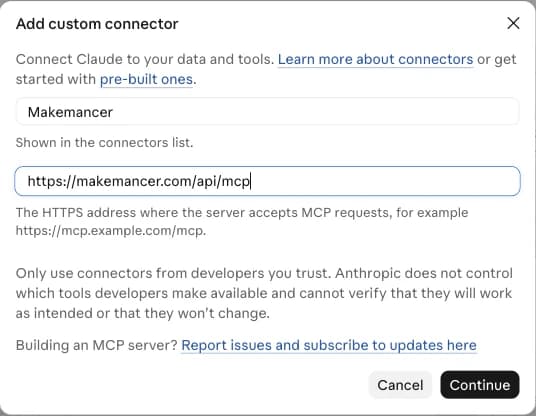
- 3
Connect and sign in
Choose Connect and sign in with your Makemancer account. In a chat, open the tools menu and check that Makemancer is switched on.
- 4
Add the skills
Download the skills ZIP, then in Claude open Customize, then Skills, choose +, then Upload a skill, and pick the ZIP. Your assistant then follows the same workflows as the plugin.
Download makemancer-skill.zip Done. Start a new chat and try the prompt below.
Works on every Claude plan, Free included; on Team and Enterprise your admin may need to allow plugins. No Plugins tab? Add the connector and the skills by hand below. Official guide
A few details that the dialog does not spell out:
- The URL must be exact. Paste the full server URL, including
https://and the path. For Makemancer that is https://makemancer.com/api/mcp. A missing path or a trailing typo gives a connection error. - Sign-in opens a new window. Claude sends you to the server's own sign-in page. Approve the request there and you return to Claude with the connector marked as connected.
- No API key. A remote MCP server that supports OAuth signs you in with your account. You do not paste a key into Claude.
Turn the tools on in a chat
Adding the connector does not mean every chat uses it. In a new chat:
- Open the tools menu below the message box.
- Find Makemancer in the list and make sure its switch is on.
- Ask for something the connector does.
Prompt to paste
Make a square photo of a speckled stoneware mug of coffee on linen, soft morning light. Tell me the cost first.The first time Claude calls a tool, it asks for permission. You can allow it once or always for that tool. Claude then quotes the cost, runs the job and shows the image:

If you keep several connectors switched on, name the one you want ("use Makemancer to make…") so Claude picks the right tool.
Use the connector in Cowork
Cowork runs longer tasks with the same account connectors. Start a task and describe the whole job, for example "Make three product photos for the new candle, then a 5-second clip from the best one." Cowork asks before it calls a tool, so you can approve each generation as it comes up. Media you make there lands in the same Makemancer library as media made in a chat.
Remove or reconnect a connector
Go back to Customize, then Connectors, and open the connector:
- Disconnect signs you out but keeps the connector in your list. Use it to switch accounts: disconnect, then choose Connect and sign in with the other account.
- Remove deletes the connector from your list. On the free plan this frees the single slot for another server.
- Reconnect when Claude reports that the connector needs authentication. Sign-ins expire after a while, and choosing Connect again renews them.
Removing the connector does not delete anything stored on the server. Your Makemancer library and credit balance stay as they are, and they are there again when you reconnect.
Troubleshooting
"Add custom connector" is missing. On Team and Enterprise plans only owners can add one. Ask an owner to add the URL in the organization settings; you then connect from your own Connectors page. On the free plan, check whether a custom connector is already in the list.
The sign-in window closes or never opens. Your browser may block pop-ups from claude.ai. Allow them and choose Connect again. In Claude Desktop, the sign-in opens in your default browser; finish it there and return to the app.
The connector is connected but Claude does not use it. Check the tools menu in that chat. A connector can be switched off per chat. Starting a new chat also helps after you change connector settings.
Claude says a tool failed. Read the message Claude shows. A common one is an empty balance: buy a pack on the pricing page and ask Claude to try again. If a generation fails on the model's side, the credits return to your balance automatically.
It worked yesterday and stopped today. The sign-in likely expired. Disconnect and connect again from the Connectors page.
What you can do once it is connected
With Makemancer, Claude can make and edit images, turn a still into a video, write and voice a narration, compose a track and add sound effects. Claude quotes the cost before each job. Good next reads:
- How to generate images in Claude, with the prompt to try first and the image models to choose from.
- Image to video, for animating a photo you already have.
- Pricing, for what each model costs per image or per second.
Credits come from one-time packs, from $10, with no subscription required. One credit is $0.01, and pack credits never expire.
Questions
Can I add a custom connector on the free Claude plan?
Yes. The free plan allows one custom connector. Paid plans allow more, so you can keep several MCP servers connected at once.
Why can't I see Add custom connector on my Team plan?
On Team and Enterprise plans an owner adds the connector for the organization first. After that, each member opens Connectors, finds it in the list and chooses Connect to sign in with their own account.
Do I need to add the connector again for Claude Desktop or Cowork?
No. Connectors belong to your Claude account. One added in Claude.ai shows up in Claude Desktop and in Cowork after you sign in.
Is a custom connector the same as an MCP server?
Yes. A custom connector is a remote MCP server that Claude reaches over the internet. You give Claude its URL and sign in, and its tools appear in your chats.
What does the Makemancer connector cost?
Adding the connector costs nothing. Generations are paid with credits from a one-time pack, from $10, and failed jobs are refunded automatically.
Keep reading
 How-toHow to Generate Images in ClaudeClaude does not render images on its own, but it can with an image generation connector. Set it up in a minute, then create and edit images from the chat.November 5, 2026 · →
 SetupHow to Add a Custom MCP Server to ChatGPTAdd a remote MCP server to ChatGPT from the Plugins page: the exact menu path, the OAuth and warning screens, which plans and workspaces have it, and how to call the tools in a chat.November 5, 2026 · →